How to Manage Disk Space Like a Pro with EaseUS Partition Master

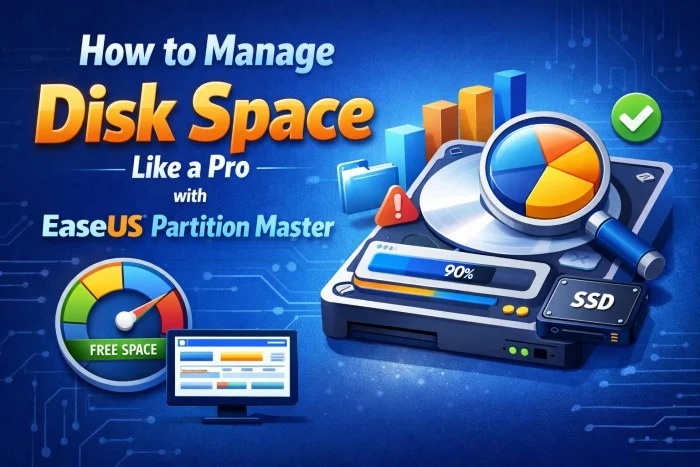
Efficient disk space management is essential for keeping your computer running smoothly, preventing performance issues, and ensuring your files are stored in an organized way. Whether you’re a beginner or a tech-savvy user, choosing the right tool can make this process quick, safe, and hassle-free. One of the most reliable solutions available today is EaseUS Partition Master, a powerful partition and disk optimization utility designed for both home and professional use. Here’s how you can manage disk space like a pro using this tool.
1. Analyze Your Current Disk Layout
Before making any changes, the first step is to understand how your storage is structured. After launching the software, it displays all connected drives and partitions visually. This helps you quickly see how much space is allocated, which partitions are full, and where there may be unallocated space. Identifying these details ensures you make informed decisions before resizing or creating partitions.
2. Resize, Extend, or Shrink Partitions Safely
Running out of space on your system drive (usually C:) is a common cause of slow performance. With this tool, you can easily extend a partition by borrowing unused space from another one on the same disk. Similarly, if you want to free up space, you can shrink a large partition.
The process is straightforward:
- Right-click the target partition
- Select Resize/Move
- Drag the slider to expand or reduce the space
- Apply the changes
The software performs these operations without damaging your data, which is ideal for users who may be nervous about disk adjustments.
3. Create and Organize Partitions
Having separate partitions helps you organize data better. For example, you can create one partition for your operating system, another for personal files, and a third for software or games. This not only keeps things tidy but also makes backups and system recovery easier.
Using the tool, creating a new partition is as simple as:
- Selecting unallocated space
- Choosing Create Partition
- Assigning a drive letter, file system, and size
This structured approach improves both performance and usability.
4. Merge and Split Partitions for Better Space Distribution
If you have several small partitions and want to combine them into one larger volume, the software offers a Merge feature. This is useful when you want to eliminate unused partitions and reclaim space. Conversely, you can Split a large partition into two smaller ones if you wish to separate work files and personal data.
Both operations are handled with data safety in mind, making them suitable even for beginners.

5. Convert File Systems and Partition Styles
Sometimes managing disk space requires formatting or converting drives. The tool allows you to convert file systems (like FAT32 to NTFS) without erasing data. You can also convert between MBR and GPT partition styles—an important feature for users upgrading to larger hard drives or installing modern operating systems.
These conversions are typically advanced tasks, but the software automates them to reduce risk.
6. Migrate OS to SSD for Speed Improvements
If you’re upgrading from an HDD to an SSD, migrating your operating system is one of the best ways to improve performance. Instead of reinstalling Windows, the software provides an automated Migrate OS feature. It clones your OS and system files to the new drive, allowing you to boot from it instantly. This gives your PC a fresh, fast feel with minimal effort.
7. Clean Up Junk Files and Reclaim Space
Beyond partition management, the tool includes cleanup utilities that help remove temporary files, leftover system data, and other clutter. Regularly using this feature helps you maintain free space and prevent slowdowns.
Managing disk space doesn’t have to be complicated. With a clear visual interface and powerful yet safe tools, EaseUS Partition Master enables anyone—from beginners to professionals—to take full control of their storage. By resizing, organizing, converting, and optimizing partitions, you can ensure your PC performs at its best and your data stays organized for the long term.